IPTV EPG: What It Is and How to Set Up the TV Guide
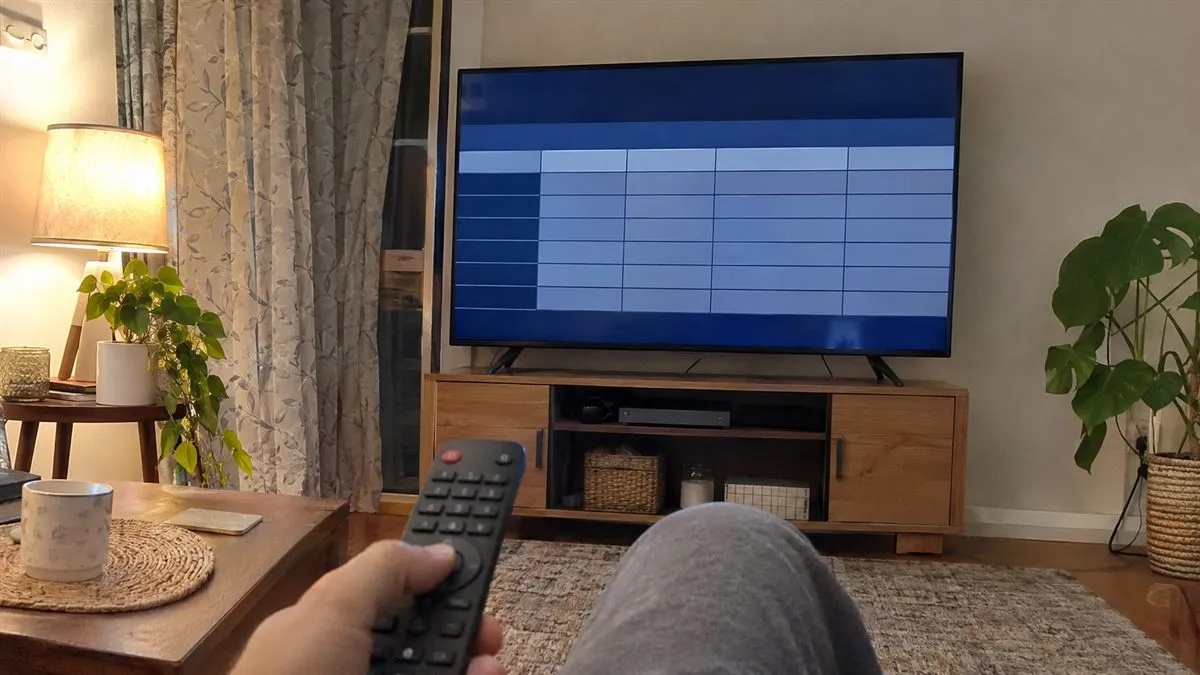
EPG stands for Electronic Programme Guide. It is the TV guide inside your IPTV app: the grid that shows what is on now, what comes next, and the schedule for the coming days. Without an EPG you only see a list of channel names. With it, IPTV feels like normal TV.
How an IPTV EPG works
The guide data comes from a separate file, usually in XMLTV format. That file lists programmes with a start time, end time, title and description, and each entry is tied to a channel ID. Your player app downloads the file and matches each ID to a channel in your playlist.
When you log in with Xtream Codes details (server URL, username and password), most apps load the EPG automatically. When you use an M3U link, the EPG link may be built into the playlist or given to you separately. Learn the difference in our guides on Xtream Codes and M3U playlists.
What you can do with a working EPG
- See the full schedule for each channel, often 3 to 7 days ahead.
- Read a short description of each programme.
- Set reminders so the app tells you when a match or show starts.
- Use catch-up on channels that support it, to watch programmes that already aired.
- Record programmes in apps that support recording, such as TiviMate Premium.
Set up the EPG in TiviMate
- Open TiviMate and go to Settings → Playlists.
- If you added the playlist with Xtream Codes, the EPG is usually already linked. Go to Settings → EPG to check that a source is listed.
- If no source is listed, choose Add EPG source and paste the EPG URL you received.
- Choose Update EPG and wait until the progress finishes.
- Open the TV guide. Programme names should now appear in the grid.
Full app setup is in our TiviMate guide.
Set up the EPG in IPTV Smarters Pro
- Log in with your Xtream Codes details.
- On the home screen, choose Install EPG or open Settings → EPG.
- Wait for the download to finish. On large lists this can take a few minutes.
- Open Live TV and then the TV guide view.
See the full steps in our IPTV Smarters Pro guide.
EPG not showing? Common fixes
- “No information” on every channel: update the EPG manually from the app settings, then restart the app.
- Guide works on some channels only: some channels, often small or event channels, have no guide data. This is normal.
- Times are wrong by one or more hours: set the EPG time shift in the app, or check that the device time zone is correct (Ireland: GMT/IST; Australia: the zone for your state).
- Guide is empty after a few days: turn on automatic EPG update, for example every 12 or 24 hours.
- App is slow after loading the guide: reduce the number of days kept in the EPG settings, or hide channel groups you never watch.
Does the EPG use a lot of data?
No. The guide file is small compared with video. A full download is usually a few megabytes, and updates once or twice a day are enough.
Need help with your TV guide?
EPG support is included with every plan. Send us a message on WhatsApp with your app name and a photo of the problem, and we will help you fix it. See our plans or the FAQ.