IPTV 4K: What You Need to Watch in Ultra HD
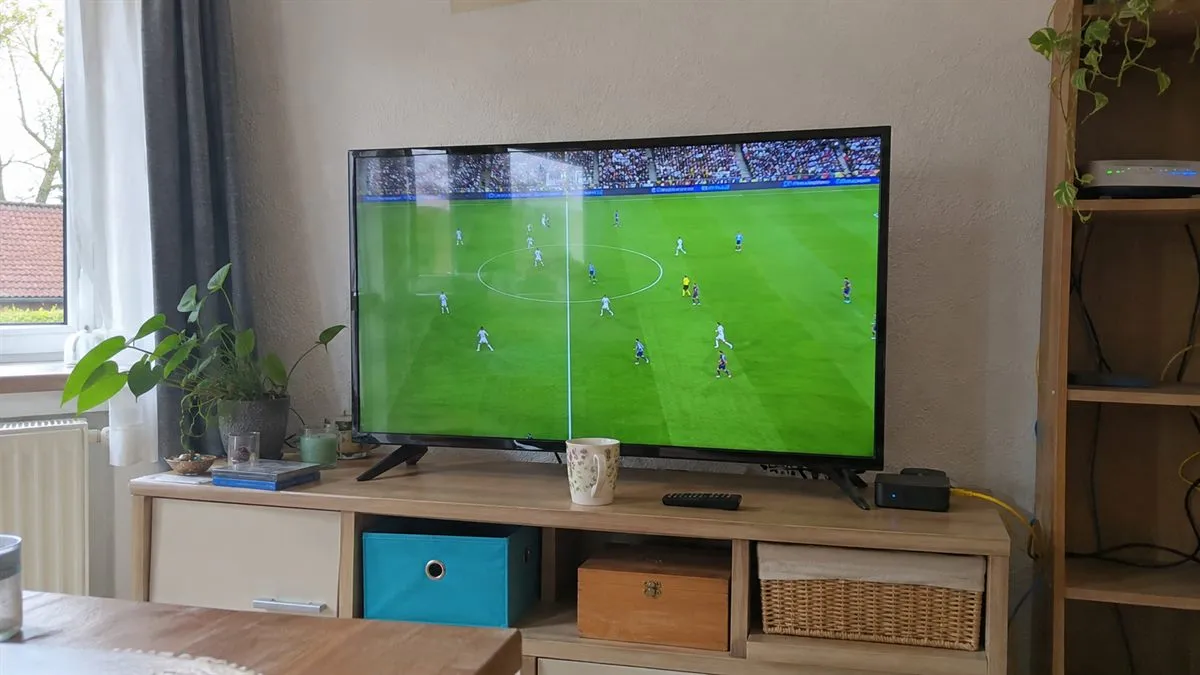
4K IPTV means live channels and films streamed at 3840 × 2160 pixels, four times the detail of Full HD. On a big TV the difference is clear, especially in sport, nature shows and new films. But a 4K stream only looks good when every link in the chain can carry it. This guide explains what you need, step by step.
What “4K” means on an IPTV subscription
An IPTV service sends each channel in one or more qualities. A typical line-up has SD, HD, Full HD (FHD) and 4K versions. 4K channels are usually marked with “4K” or “UHD” in the channel name or in a separate group in your player app.
Not every programme is filmed in 4K. A 4K channel that shows an old film will not add detail that was never recorded. Native 4K content is most common in big sport events, recent films and series, and documentary channels.
Internet speed for 4K IPTV
Speed is the most common reason a 4K stream buffers. As a rule of thumb:
- SD: about 3 to 5 Mbps
- HD / Full HD: about 8 to 15 Mbps
- 4K: 25 Mbps or more, with some headroom
Those numbers are for one screen. If two TVs stream at once, or someone in the house is downloading games or using video calls, you need more. Run a speed test on the device you watch on, at the time you usually watch, not on your phone next to the router.
In Ireland, most fibre and many FTTC lines are fast enough. In Australia, NBN 50 or higher is a safe starting point for one 4K stream; NBN 25 can work but leaves little room for anything else.
Use a cable when you can
Wi-Fi speed drops with distance and walls. A TV that gets 200 Mbps next to the router may get 20 Mbps two rooms away. For 4K, an Ethernet cable from the router to the TV or box is the single best upgrade. If a cable is not possible, a mesh Wi-Fi system or a powerline adapter is the next best option.
Devices that play 4K IPTV well
Your screen must be a 4K TV, and the device that runs the app must decode 4K video. Good choices:
- Amazon Fire TV Stick 4K / 4K Max: cheap, fast, and easy to set up. See our guide on IPTV on Firestick.
- Android TV boxes such as the Nvidia Shield or a recent Google TV device. Read more in our IPTV box guide.
- Smart TVs (Samsung, LG, Android TV models) with a supported player app.
- Apple TV 4K with an IPTV player from the App Store.
Older “4K” boxes with weak processors often stutter on high bitrate channels. If the picture freezes while the internet speed test is fine, the device is usually the bottleneck.
Pick a player app that handles 4K
The app decodes the stream, so it matters. TiviMate and IPTV Smarters Pro both play 4K on capable hardware. In the app settings, check that hardware decoding is on and that the video output is set to match your TV. Our best IPTV player article compares the main options.
Quick checklist before you watch in 4K
- A 4K TV, with the HDMI cable in a port that supports 4K (often HDMI 1 or the port marked “4K” or “HDCP 2.2”).
- 25 Mbps or more measured on the TV or box itself.
- Ethernet, or strong Wi-Fi close to the router.
- A device and app that decode 4K smoothly.
- The 4K version of the channel selected, not the HD one.
When to choose HD instead
4K is not always the best choice. On a TV under about 43 inches, or when you sit far from the screen, most people cannot see much difference from Full HD. If your line is slow at peak hours, a steady Full HD picture is better than a 4K stream that buffers. With most subscriptions you can switch between versions of the same channel at any time.
Common 4K problems and fixes
- Buffering every few minutes: test speed on the device, move to a cable, or try the FHD version.
- Picture looks no sharper than HD: the programme may not be native 4K, or the TV picture mode is set to an upscaling preset.
- Black screen on 4K channels only: the HDMI port or cable may not support 4K. Try another port.
- Sound out of sync: change the audio output in the player app from passthrough to PCM, or the reverse.
Need help setting up 4K?
Send us a message on WhatsApp with your device and app name, and we will help you check your setup. You can see our plans on the pricing page or read the setup guides.